
Brightspace Communication Tools
About Brightspace Communication Tools
Brightspace offers a variety of communication tools designed to help faculty stay connected with their students and foster an engaging learning environment. Key tools include Announcements, which provide a quick way to share updates or reminders on the course homepage, and Email, allowing instructors to send messages directly to individuals or the entire class from within the platform. The Classlist tool makes it easy to view and contact enrolled students, while Intelligent Agents automate communication based on specific criteria, such as inactivity or missed deadlines. Discussion boards offer a space for interactive dialog and community building around course topics. Together, these tools support timely feedback, personalized communication, and active student engagement throughout the course.
Announcements
Use the Announcements tool to share essential information, course updates, and encouraging messages with your students. Keeping learners informed helps reduce anxiety, reinforces your presence in the course - even at a distance, and saves time by centralizing important communications in one easily accessible location. Learn more about the Announcements Tool.
You can access and create a course announcement using the Announcement widget on the Course Homepage:
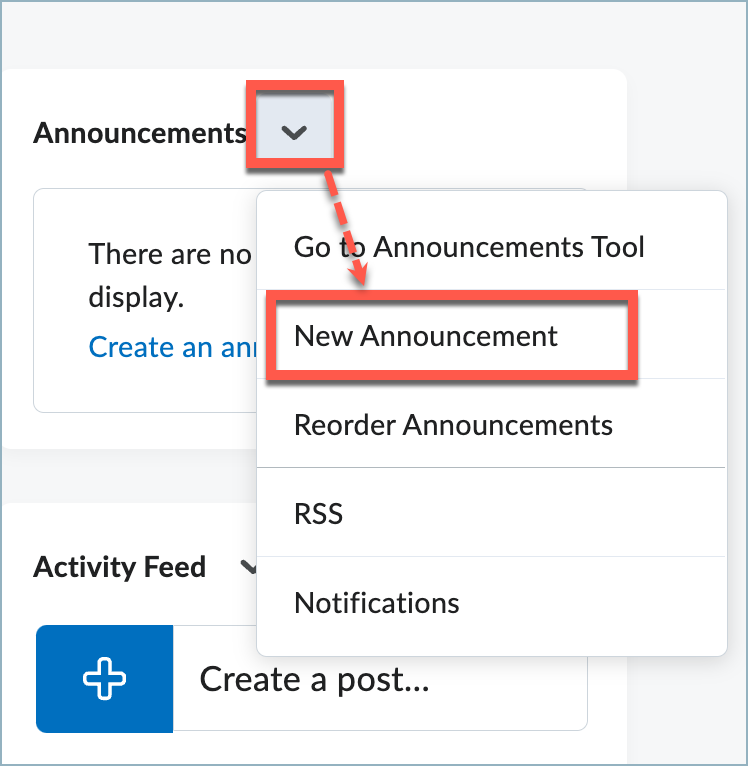
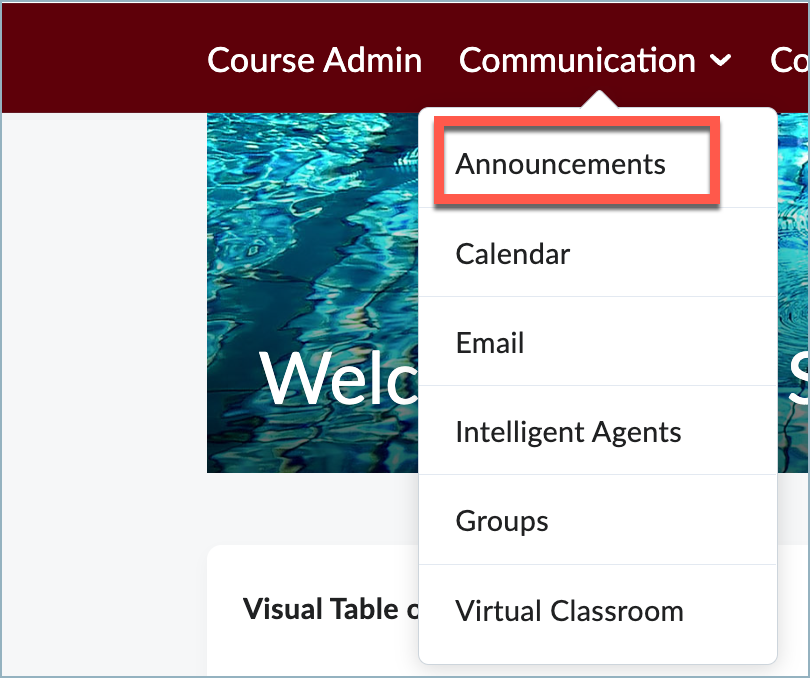
Alternatively, you can access the Announcements tool by selecting the Communication from the course navigation bar and choosing the Announcements option.
NEW FEATURE! Email a Copy of An Announcement in Brightspace
You can now choose to send an email copy of your course announcements in Brightspace. With the November update a Send Email Copy checkbox now appears when you are creating an announcement. When you check this box, a copy of the announcement will be sent as an email from you to all users in the Class list. This option allows you to share announcements prior to the start date of the course (even if the course is not active).
For announcements scheduled to publish at a later date, clicking the Send Email Copy checkbox emails the copy to users in the Classlist at the time that the announcement is scheduled to be published.
Brightspace offers several access points for its internal email tool, making it easy to facilitate communication with your students. Emails sent through Brightspace are delivered directly to your Missouri State University (MSU) email account and your students’ MSU accounts, ensuring messages reach recipients reliably. Learn more about sending email.
One convenient way to send an email is through the Classlist tool, which you can access by visiting the Course Admin link on the course navigation bar and selecting Classlist from the options.
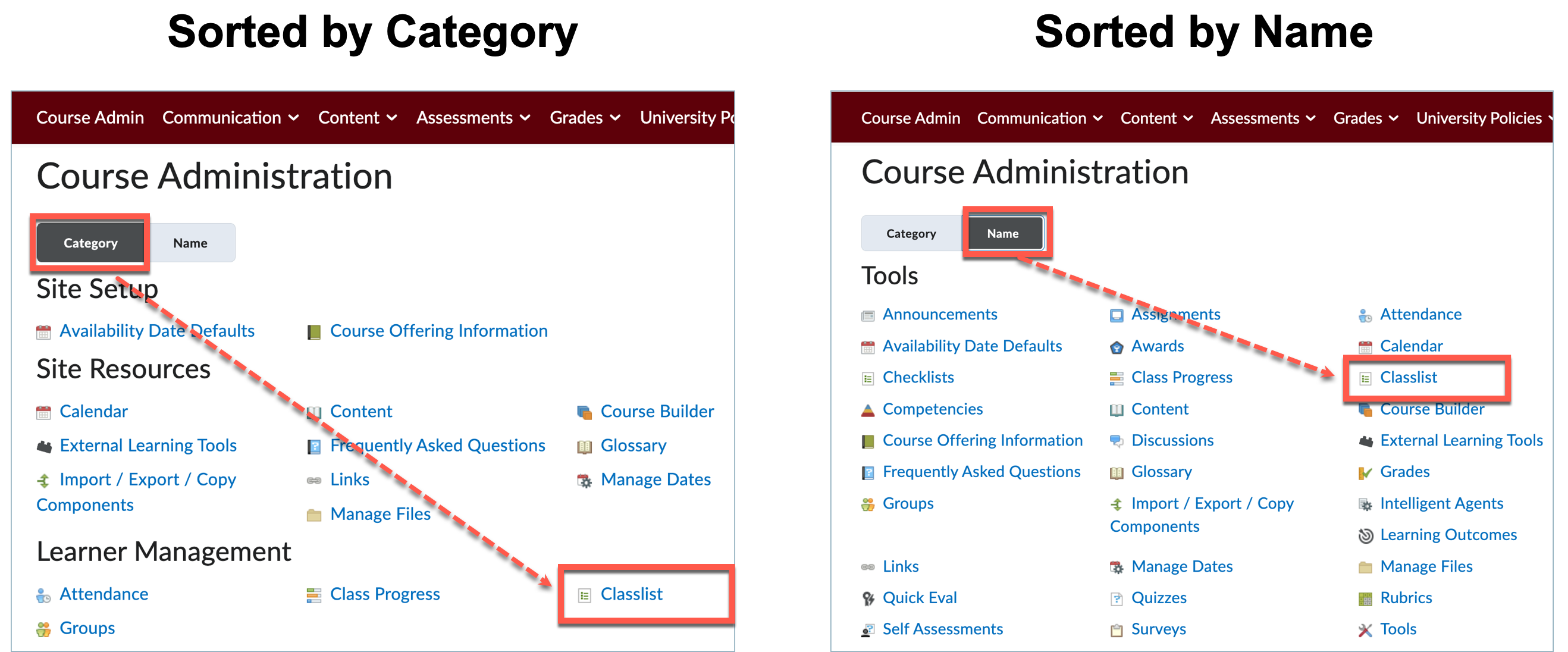
To email all users enrolled in the course simply select the Email Classlist button. Learn more about sending email through the Classlist tool.
Activity Feed
The Activity Feed allows for multiple types of communication: instructor-to-student, student-to- instructor, and even peer-to-peer. You can permit students to comment on posts (which you can always edit or delete, if needed), and even to create their own posts. Learn more about Activity Feed.
Discussion Board
Use the Discussions tool in your course to promote interaction and collaboration among students. Create forums and topics where learners can ask questions, explore course concepts, reflect on assignments, and work together in assigned groups. This space encourages peer-to-peer learning and supports a more connected classroom community. The Discussion Tool is located under Assessments in the course navigation menu.
Learn how to create Discussion Forums and Topics.
Intelligent Agents
Intelligent Agents in Brightspace can automatically monitor your course and notify you when certain conditions are met, helping you stay connected with your students and save time. You decide the criteria, such as login activity, course participation, or specific release conditions, and the system does the rest.
Example uses include:
- Send an email to students whose grades fall below a set threshold.
- Identify students who haven’t logged in for a certain number of days.
- Notify you when a student views (or doesn’t view) a specific content topic.
Learn more about Intelligent Agents in the Brightspace Documentation.