Assessment Tools
About the Assessment Tools in Brightspace
Assessments in Brightspace help you measure student learning and provide meaningful
feedback - all within your course site. Brightspace includes several tools to help
you create different types of assessments. The Assignments tool lets students submit written work, presentations, or other files directly in
the course. The Quizzes tool is great for multiple-choice, true/false, or short answer questions and offers
options for automatic grading. The Discussions tool allows for reflective or collaborative responses and can also be graded. As you
explore each tool, you'll find helpful settings for due dates, feedback, rubrics,
and connections to the gradebook to keep everything organized and transparent for
your students.
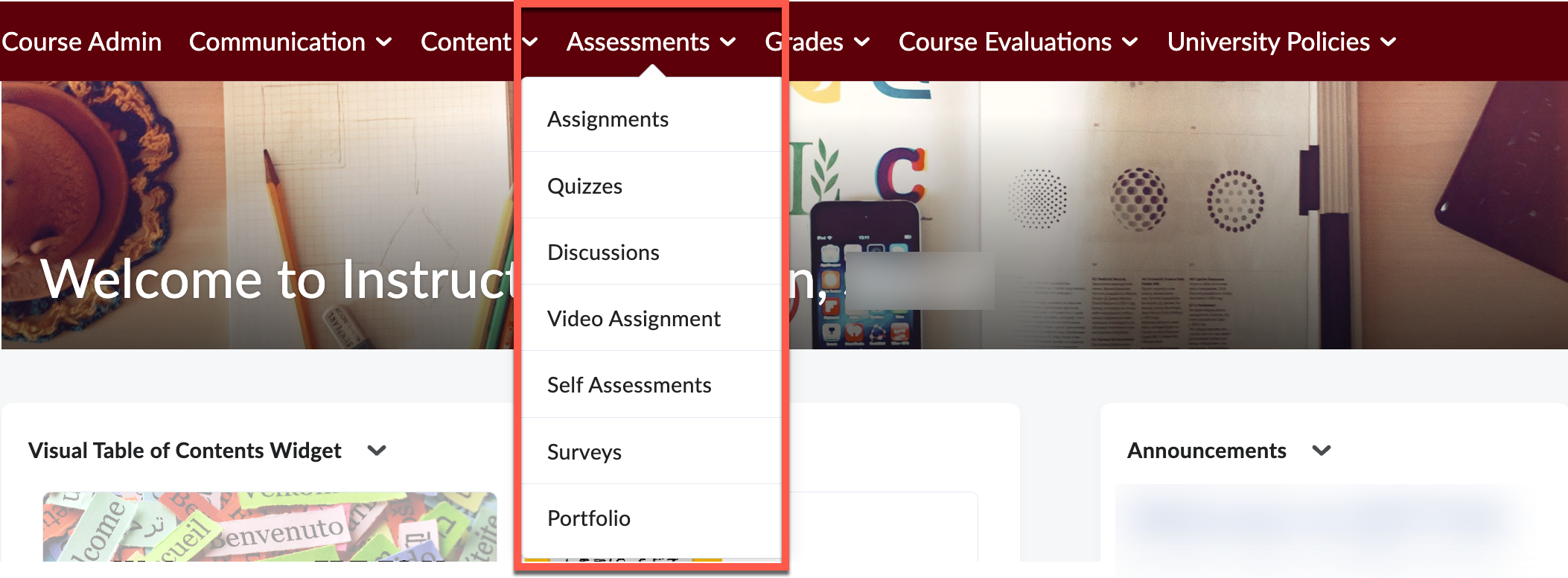
Direct access to each each of these tools is located under Assessments in the Course
Navigation bar.

Assignments
-
The Assignments tool in Brightspace allows you to create and manage student coursework.
Assignments provides a place for you to communicate assignment instructions, set due
dates, enable plagiarism detection using Turnitin, and provide personalized feedback
directly within the platform. Whether collecting essays, projects, or reflections,
the Assignments tool streamlines submission and grading workflows, helping you stay
organized while supporting student success. Learn more about creating Assignments in Brightspace.
Quizzes
-
The Quiz tool in Brightspace makes it easy to create online quizzes for your students.
You can choose from different question types, set time limits, and even mix up the
questions so each student gets a slightly different version.
As a best practice, it's recommended to build and maintain all questions in the Question
Library for better organization and long-term accessibility.
Question Library
The Question Library is a centralized repository where you can create, store, and
organize questions for use throughout your course. Organize questions into sections
by type or topic to make them easier to manage and reuse in quizzes, surveys, and
self-assessments. If you've already made questions in the Quizzes, Surveys, or Self
Assessments tools, you can move them into the Question Library to keep everything
in one spot. Learn more about the Question Library.
Creating Quizzes
Quizzes can be graded automatically and linked to your gradebook, saving you time.
Whether you're checking for understanding, giving a practice test, or setting up a
final exam, the Quiz tool helps you assess student learning in a flexible and organized
way. Learn how to Create a Quiz in Brightspace.
The university provides access to Respondus 4 (Exam Author), a Windows-only software that lets you convert exams created in Microsoft Word into
a format you can upload directly to your Brightspace course. You can find the download
and software key for Respondus 4 in the Academic Community site in Brightspace. (Note: Respondus 4 is not compatible with Mac computers.)
Respondus Lockdown Browser and Monitor
-
Respondus LockDown Browser and Monitor are secure online testing tools used to maintain academic integrity during quizzes
and exams in Brightspace. LockDown Browser prevents students from printing, copying,
accessing other applications, or visiting external websites suring as assessment.
When used with Monitor, the student's webcame records the testing environment and
behavior, allowing instructors to review flagged incidents. Together, these tools
create a more secure and controlled online testing experience.
Resources:
Additional Topics of Interest:
Discussions
-
Use the Discussions tool in your course to promote interaction and collaboration among
students. Create forums and topics where learners can ask questions, explore course
concepts, reflect on assignments, and work together in assigned groups. This space
encourages peer-to-peer learning and supports a more connected classroom community.
Learn how to create Discussion Forums and Topics.