


Organization Homepage
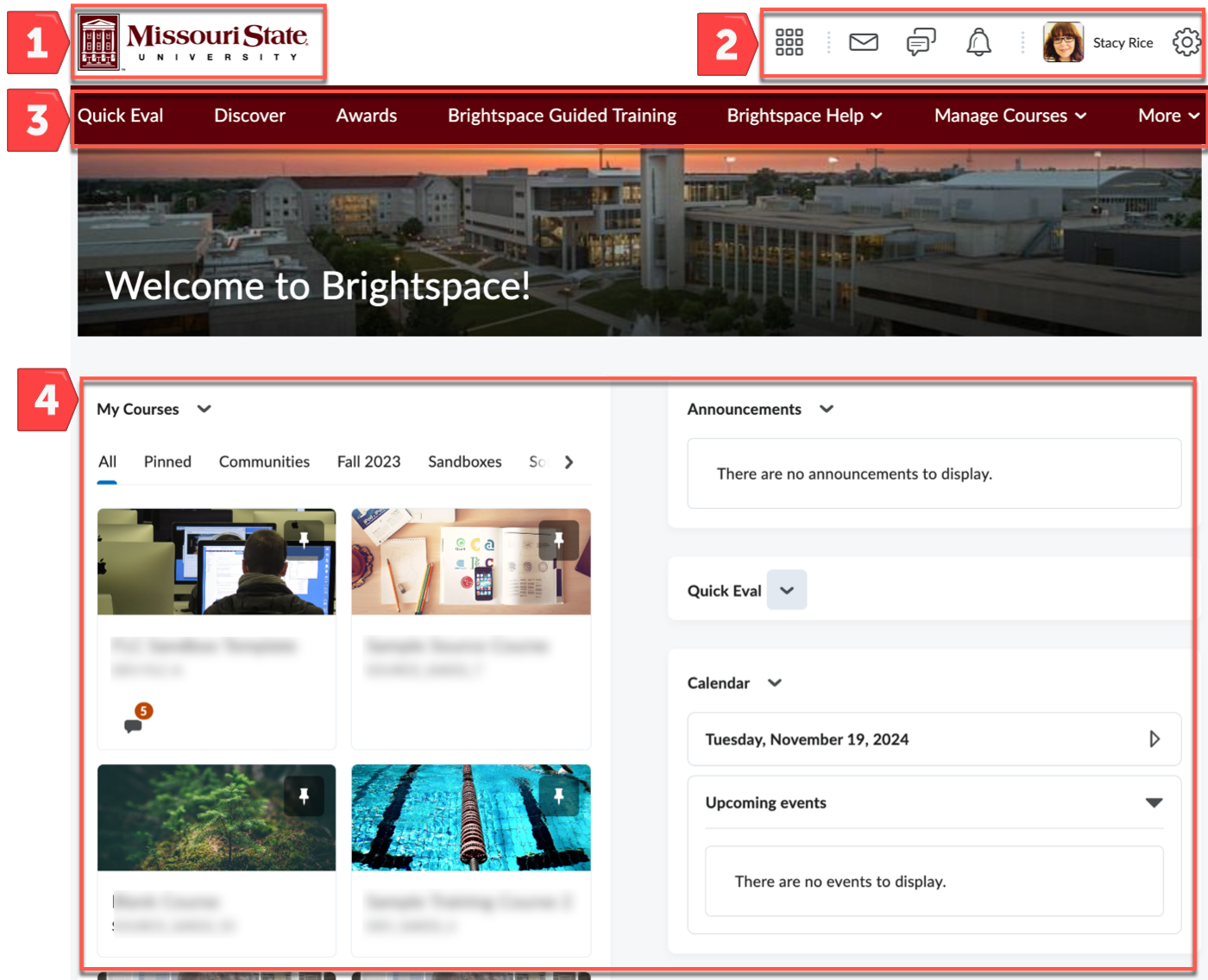
1. Missouri State Logo: serves as the home button to return you to your Organizational Homepage from anywhere in Brightspace.
2. The Mini Navbar: Provides a drop-down menu access to find courses you are enrolled in or teaching, global notifications, and profile settings. From your username on the mini navbar, you can make changes to your user profile, notifications, account settings, and log out.
3. The Navbar: The Organization Navbar provides access to a variety of Brightspace resources, the organizational catalog (Discover), as well as custom tools for requesting courses and adding users.
4. Widget-based Homepage: Widgets on the organization homepage provide global access to tools such as Quick Eval, Calendar, and My Courses. The My Courses widget allows you to sort through your courses by term. The announcement widget displays institutional announcements (course announcements are viewed on the announcement widget on the course homepage).
Locating Your Courses
From the organization home page, you can find your courses using the Course Selector located in the Mini Navbar or the My Courses widget.
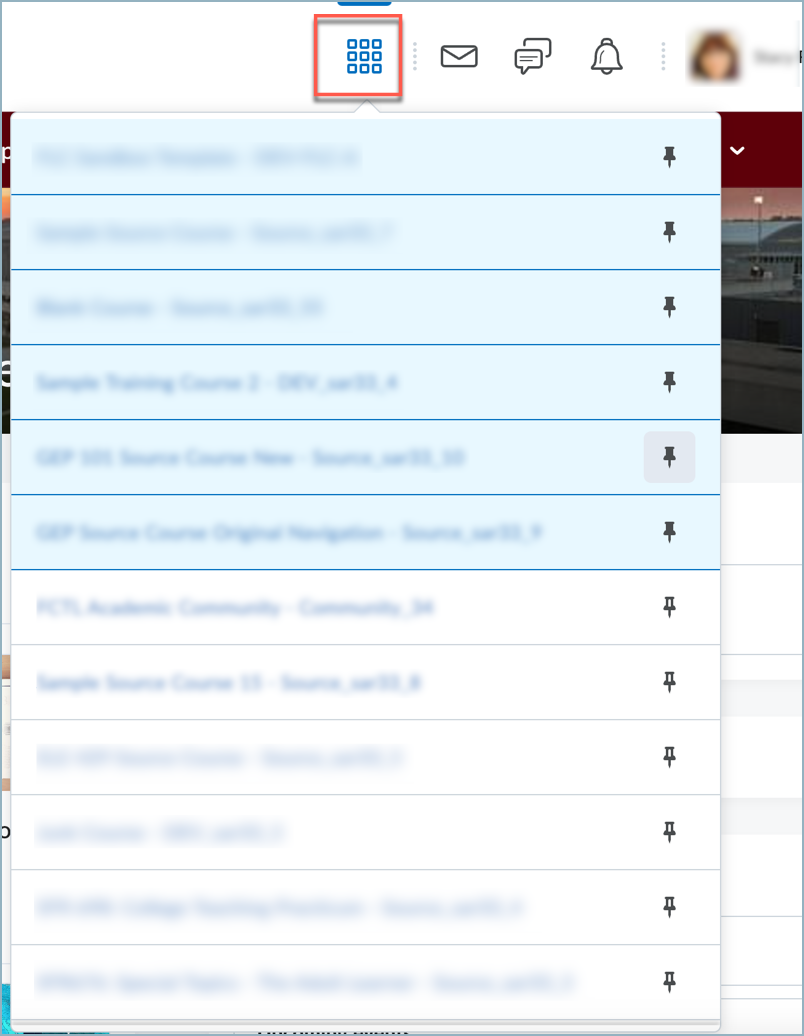
Course Selector
Selecting the Course Selector icon from the Mini Navbar will provide a drop down listing of all your courses. You can access your favorite or frequently accessed courses by selecting the pin icon next to the course title to "pin" them to the top of the list.
The My Courses Widget
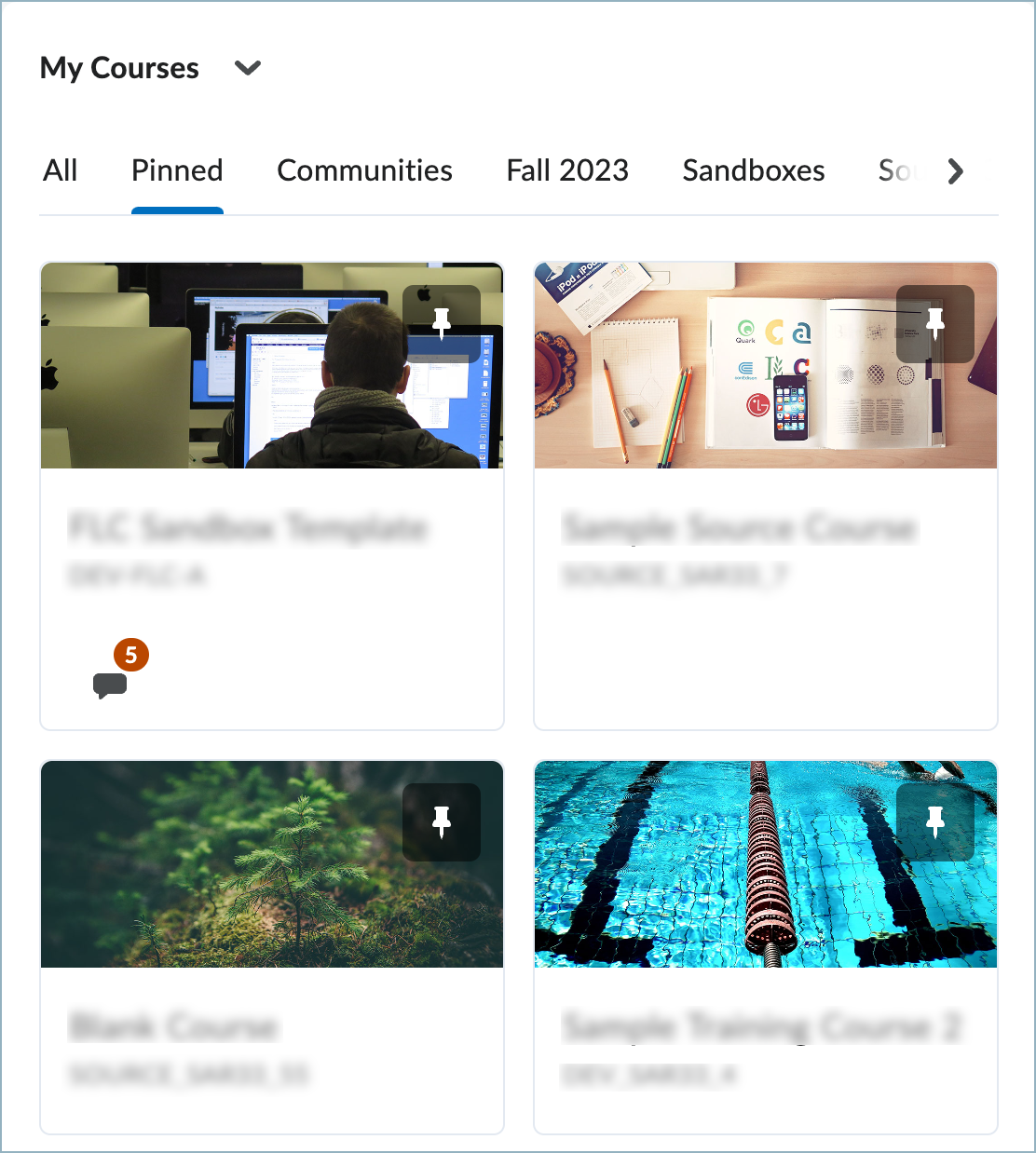
In the My Courses widget, courses have associated images and are sorted into tabs for ease of access. If you have pinned any of your favorite or frequently accessed courses they will display in the Pinned tab. Within this widget, courses are ordered by enrollment date, prioritizing current enrollments.
Course Navigation
Course Navbar Instructor View
Once inside a course, the navigation bar changes to reflect the tools within your course.

- Course Admin: Provides access to course settings and tools.
- Communication: Includes Announcements, Calendar, Email, Intelligent Agents, Groups, and Virtual Classroom.
- Content: Includes Content, Checklist, Manage Files, Media Library, and the LOR (Learning Objects Repository). Content is your all-in-one tool for creating and managing all your course materials. We recommend using this tool as the most efficient way to link to the various tools throughout the course.
- Assessments: Provides quick access to Assignments, Quizzes, Discussions, Video Assignment, Self-Assessments, and Surveys.
- Grades: Includes Grades, Quick Eval, Class Progress, Rubrics, and Awards.
- University Policies: Includes links to Springfield University Policies and West Plains University Policies
There are a few key points of navigation to optimize your time in your course:
- Course Title: Select the Course Title to return to the Course Homepage.
- Course Navigation Bar (Navbar): The Navbar contains links to course-specific and organization-wide tools and resources.
- Visual Table of Contents Widget: Displays a "flip tile" fisual representation of modules in a course. Each course module's title and image appear on the front of a tile. Learners can click on each tile to flip it over and reveal a description of the module.
- Announcements Widget: This widget helps you stay connected with your learners by making it easy to access and create announcements.
- Quick Eval Widget (Instructor Role Only): Offers instructors a single location to view all submissions that are awaiting evaluation.
- Activity Feed Widget: Provides a central location for instructors to post messages and assignments. You can also provide links to course materials and external resources (see more information under Communication Tools).
- Work To Do Widget (Student Role): Shows all content with due or end dates in the near future or in the past. Any overdue work will appear at the top of the list, and upcoming items appear below.
- Calendar: See all upcoming events in one spot, like assignment or quiz due dates.
- Single Profile Widget: Provides in-line authoring that allows users to introduce themselves to learners. Put important details at the forefront, showcase a personal photo, share social media details, and write other important information.
Please note: Widgets cannot be removed. If you do not want to use a widget, you may collapse it. However, collapsing a widget only effects your view of the widget.